# Why Is My Website Not Showing Up on Google? Start With One Search
> One search tells you whether Google has your site at all — and the fix is completely different depending on the answer. Then the exact setting to check in WordPress, Wix, Squarespace, Shopify and Canva, plus the robots.txt and noindex checks for a custom-built site, with every platform's own documentation linked.
>
> Source: https://foundlyagency.com/blog/why-is-my-website-not-showing-up-on-google
> By: Lawrence Kang · 2026-08-18 · FoundlyAgency — Get Found. Grow Faster.
---
Before you change anything on your website, run one search. It takes ten seconds and it decides everything that follows.
Go to Google and search this, with your own domain in place of the example:
```
site:yourdomain.com
```
What comes back splits the problem into two completely different situations — and the fixes for them have almost nothing in common.
## What your result means
| What you see | What it means | What to do |
|---|---|---|
| **No results at all** | Google has not indexed your site. It either cannot reach it, or has been told not to | Work through the platform settings below |
| **Some pages, but not your homepage** | Partially indexed — usually a page-level setting | Check the homepage's own indexing setting |
| **Your site appears, but it doesn't come up when you search your business name** | **Nothing is broken.** You have a ranking problem, not an indexing problem | Skip to [the last section](#ranked-not-missing) — the steps above will not help you |
{{fig:fig-site-search-tree-en}}
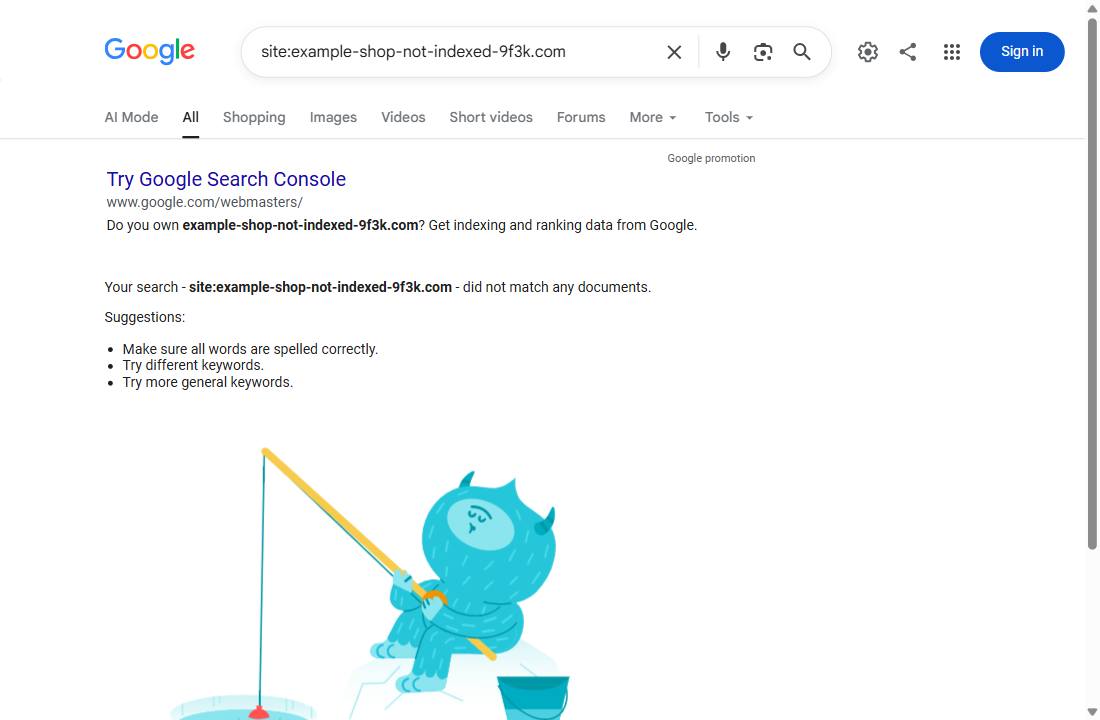
**This is what "no results" actually looks like** — the line to read is *did not match any documents*:
**And this is what it looks like when Google does have your site** — your own pages, listed:
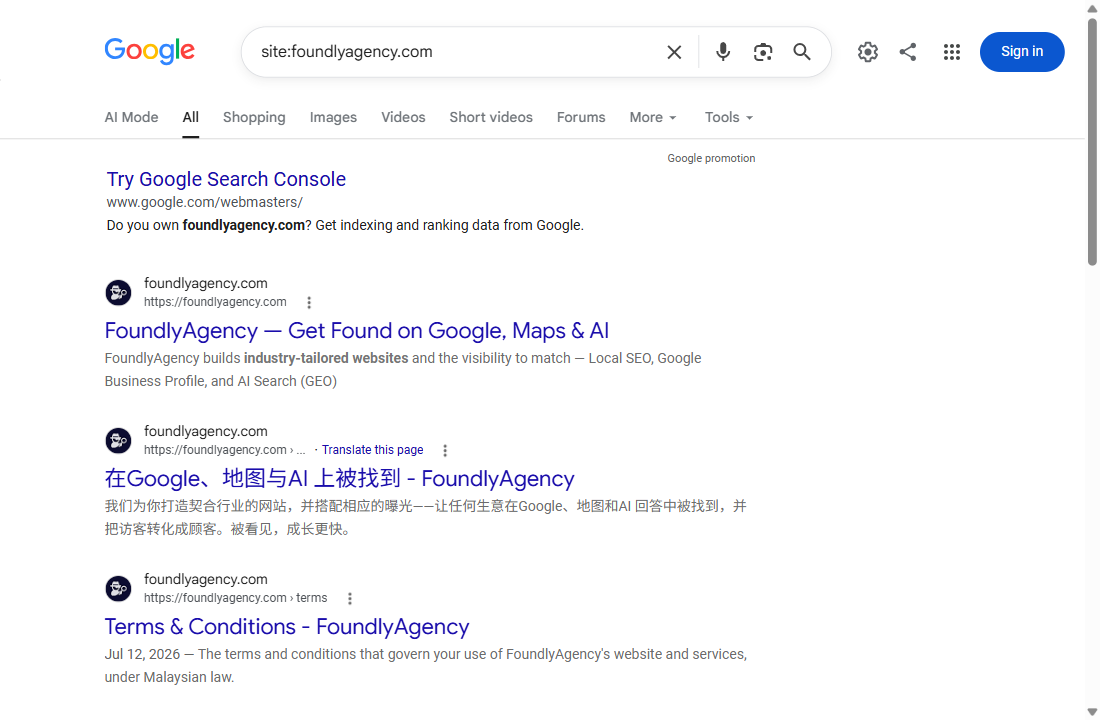
That third row catches a lot of people. If `site:yourdomain.com` returns your pages, Google has your site. Nothing needs fixing in your settings, and no amount of resubmitting will change anything.
## Find the setting for your platform
Most "my site isn't on Google" cases come down to one switch. Each platform hides it somewhere different.
### WordPress
One checkbox blocks the entire site, and it is the single most common cause on this platform because developers tick it during a build and forget to untick it at launch.
- **Settings → Reading → Search Engine Visibility → "Discourage search engines from indexing this site."** It must be **unticked**.
- **If you use an SEO plugin** (Yoast, Rank Math, All in One SEO), check its own indexing setting too. A plugin can set `noindex` while the core checkbox looks fine.
- **Check the page, not just the site.** Most SEO plugins put a per-page indexing control in the editor sidebar.
WordPress itself warns that this setting only asks search engines to stay away, so a page already indexed can linger for a while after you untick it. WordPress's own documentation: [Settings Reading Screen](https://wordpress.org/documentation/article/settings-reading-screen/).
### Wix
Two separate toggles, and people usually find only one of them.
- **Site-level:** Dashboard → **SEO & GEO** → scroll down to **Tools and settings** → **SEO Settings** → the **Let search engines index your site** toggle must be on.
*(Wix renamed this menu — older guides still say "Search Engine Optimization (SEO)". If you are following one of those, look for **SEO & GEO** instead.)*
- **Page-level:** in the editor, page settings → SEO basics → **Let search engines index this page**.
One trap worth naming: **hiding a page from your site menu is not the same as blocking it from search**. Wix states this directly — hidden pages still appear in search engines. If you hid a page hoping it would disappear from Google, it didn't.
Wix's own documentation: [Managing Search Engine Indexing for Your Site](https://support.wix.com/en/article/enabling-search-engines-like-google-to-index-your-site).
### Squarespace
Squarespace has more ways to accidentally block yourself than most:
- **Page Settings → SEO tab** — make sure **Hide this page from search results** is not checked.
- **Page Settings → Advanced tab** — remove any `noindex` code you or a previous developer added.
- **Subscription status** — search engines will not find trial, expired, or cancelled sites. This one surprises people who let a trial lapse and assumed the site stayed live.
- **Passwords** — a site-wide password, or a password on the homepage, blocks everything.
- **Paywalls** — pages behind a pricing plan are not indexed. Remove the page from the plan if you want it found.
Squarespace's own troubleshooting page: [Why doesn't my site appear in Google search results?](https://support.squarespace.com/hc/en-us/articles/205813898-Why-doesn-t-my-site-appear-in-Google-search-results)
### Shopify
Almost always the password page.
**Shopify admin → Online Store → Preferences → Store access → deselect Password protection → Save.**
Why this matters more than it looks:
- **Search engines see only the password page.** Your products, collections and pages are invisible behind it
- **Your sitemap is unreachable too.** Shopify notes that a sitemap reader cannot get to it while the store is password protected, so submitting it changes nothing until the password is gone
- **Order matters:** remove the password first, then submit the sitemap. The other way round wastes a week
Shopify's own documentation: [Password page](https://help.shopify.com/en/manual/online-store/themes/password-page).
### Canva
Canva's constraint is different from the others, and it is the one most likely to be the real problem.
**If you published to a free Canva domain, you cannot use Google Search Console.** That is Canva's own statement, not an inference, and it takes three tools away at once:
- **No sitemap submission** — you cannot tell Google the site exists
- **No request indexing** — you cannot ask for a specific page
- **No reason shown** — you cannot see why a page is missing, only that it is
Canva says indexing on a free domain will likely take even longer, and recommends a custom domain if SEO matters to you. If you already connected your own domain, allow up to 72 hours for verification before assuming something is broken.
Canva's own documentation: [Optimize the searchability of your Canva website](https://www.canva.com/help/optimize-canva-website/).
## If your site wasn't built on any of these
A custom-built site has no dashboard toggle. The block is in a file or a tag instead, and all three checks below are things you can do yourself in a browser, without asking your developer first.
### 1. Read your `robots.txt`
Type `yourdomain.com/robots.txt` into the address bar. You will get a short text file, or a 404, and both are fine.
What is not fine:
- **`Disallow: /`** under `User-agent: *` — that blocks the entire site
- **`User-agent: Googlebot`** followed by `Disallow: /` — blocks Google specifically
- **A `Disallow:` line matching the section you care about**, like `Disallow: /blog/`
This file is the single most common cause on custom sites, because a developer adds `Disallow: /` while the site is being built and nobody removes it at launch.
**This is our own `robots.txt`**, so you can see what a healthy one looks like: `Allow: /` for every crawler, a single `Disallow:` for a folder of raw markdown files we deliberately keep out of search, and the sitemap location at the bottom.
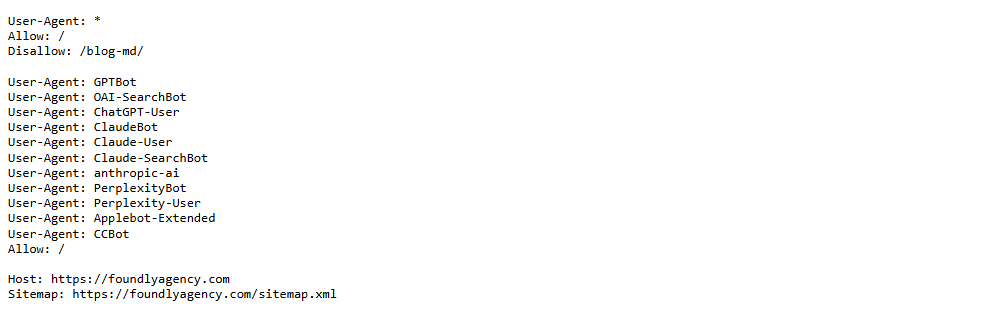
The dangerous version is short: `User-agent: *` followed by `Disallow: /` and nothing else. Google's documentation: [Introduction to robots.txt](https://developers.google.com/search/docs/crawling-indexing/robots/intro).
### 2. Look for a `noindex` tag on the page
In your browser, open your homepage, right-click, and choose **View page source**. Search that text for `noindex`.
- **``** in the `` tells Google to drop the page entirely
- **A `X-Robots-Tag: noindex` response header** does the same thing without appearing in the source, so if the page source is clean and it is still missing, ask whoever runs the server to check the headers
- **A staging site that was copied to production** usually brings its `noindex` with it
There is a trap here that catches developers, and Google states it directly:
> "For the `noindex` rule to be effective, the page or resource must not be blocked by a robots.txt file."
{{fig:fig-robots-noindex-en}}
In other words, **blocking a page in `robots.txt` stops Google from seeing the `noindex` at all**. If you want a page gone, let Google crawl it and read the tag. If you want a page indexed, you need both: crawlable in `robots.txt` *and* free of `noindex`.
### 3. Check the server isn't turning Googlebot away
Some hosts, firewalls, and bot-protection services block crawlers by default, especially after someone turns on an aggressive security preset.
- **In Search Console**, run URL Inspection on your homepage and read the fetch result. "Failed: Crawl anomaly" or a 403 points at the server, not at your content
- **Ask your host directly** whether Googlebot is allowed. Say the word Googlebot, not "search engines" — support staff treat those as different questions
- **A country-level or IP-range block** will do this too, and it is invisible from your own browser because you are not the one being blocked
Google publishes how to confirm a request really came from Googlebot: [Verifying Googlebot](https://developers.google.com/search/docs/crawling-indexing/verifying-googlebot).
## Four causes that have nothing to do with your platform
If the settings above are all correct and `site:yourdomain.com` still returns nothing:
### 1. The site is simply new
Google finds most sites by following links from sites it already knows. A brand-new domain with nothing pointing at it can sit unfound for weeks.
- **How you'd know:** the domain was registered in the last month or two, and nothing else on the web links to it yet
- **What actually helps:** get listed somewhere real — your Google Business Profile, an industry directory, your own social profiles
- **What doesn't:** waiting longer, or resubmitting the same sitemap daily
This is the most common answer and the least satisfying one.
### 2. Google Search Console is not connected
This is the difference between waiting and telling.
- **Verify the site** — DNS record or an HTML file, either works
- **Submit your sitemap** — usually `yourdomain.com/sitemap.xml`
- **Run URL Inspection on your homepage** — it tells you whether the page is indexed and, if not, exactly why
- **Press Request indexing** if it comes back unindexed
**This is what it looks like when you run it.** The page below had just been published — Google had crawled it but not yet indexed it, and the tool says exactly that:
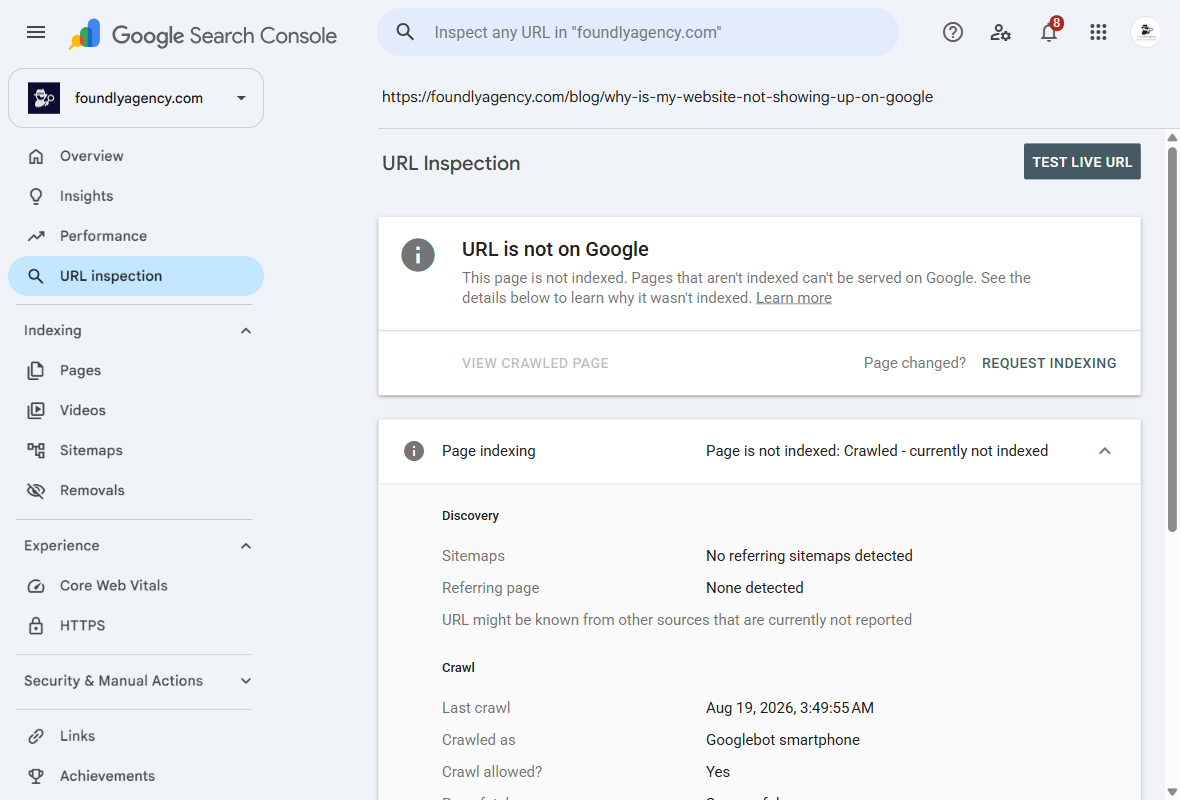
Read three lines on that screen: **Page indexing** tells you the verdict, **Last crawl** tells you whether Google has been at all, and **Discovery** tells you how it found the page — or that it hasn't.
Nothing else gives you that "why" directly. Every other method is guessing.
### 3. No sitemap submitted
Every platform above generates one automatically. Generating it and submitting it are two different things, and only the second one tells Google.
- **Check it exists:** open `yourdomain.com/sitemap.xml` in a browser — you should see a list of URLs, not an error
- **Check it's current:** your newest page should be in that list
- **Then submit it** in Search Console under Sitemaps
### 4. Your homepage doesn't say who you are
If the business name appears only inside a logo image, Google has no text to connect the site to the name people search for.
- **Page title** — the text in the browser tab should contain the real trading name
- **Visible text** — the name should appear as actual text somewhere on the homepage, not only in the logo
- **Same name everywhere** — website, Google Business Profile, Facebook page, directory listings. Three spellings of one business reads as three weak signals instead of one strong one
## "It's there, but I have to scroll to page three"
This is a different problem with a different fix, and it is worth separating clearly because the steps above are useless for it.
If `site:yourdomain.com` returns your pages, you are indexed. What you have is a competition problem: other pages are considered better answers than yours for the term you are searching. Resubmitting, republishing, or toggling settings will not move it, because nothing is blocked.
### What actually moves it
- **Answering one specific question better than the pages currently above you.** Not "we do web design" — the exact thing your customer types when they have the problem
- **Other sites referencing yours.** A directory entry, a supplier's partner page, a local association listing. Slow, and the closest thing there is to a lever
- **Name, address and phone identical everywhere** they appear online
- **Time.** A site with three months of history is competing against pages that have been collecting signals for years
### What does not move it
- **Resubmitting the sitemap.** Nothing is blocked, so nothing changes
- **Pressing "Request indexing" again.** It is already indexed
- **Adding more keywords to the page.** Google matched your page to that query already, it just ranked it below others
- **Republishing the same content with a new date**
If your customers search locally, your Google Business Profile does more of this work than your website does, and [that is a separate diagnosis](/blog/why-is-my-business-not-showing-on-google-maps).
## How long Google actually takes
The most common mistake after fixing a setting is deciding two days later that it did not work.
Google's own documentation on [asking Google to recrawl](https://developers.google.com/search/docs/crawling-indexing/ask-google-to-recrawl) puts a number on it:
> "Crawling can take anywhere from a few days to a few weeks."
What that means in practice:
- **A brand-new site**: expect weeks before the whole thing is indexed, not days
- **A fixed setting on an established site**: usually days, because Google already knows the domain
- **Requesting indexing repeatedly does not speed it up.** Google states the queue is not prioritised by how many times you ask
- **Track it, don't guess.** [Search Console](https://search.google.com/search-console/about) has a Pages report that tells you what is indexed and what was excluded, with the reason
That report is the one screen worth learning, and it comes with a trap. Here is ours:
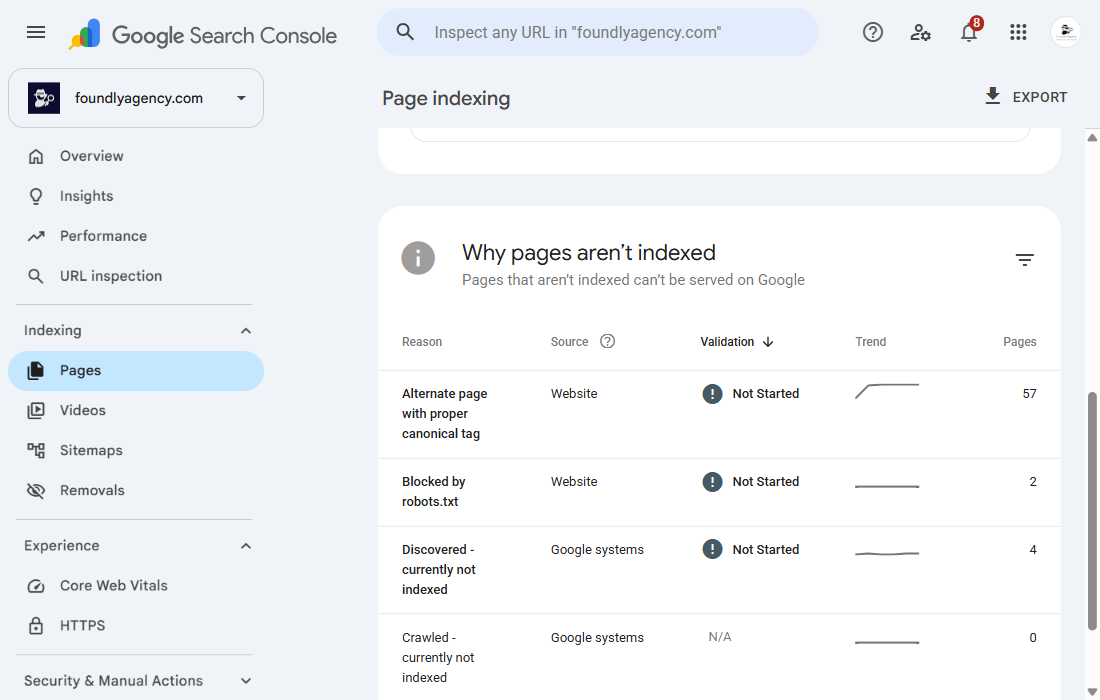
**Not indexed does not mean broken.** On the day of that screenshot Google listed 80 of our pages as indexed and 63 as not — but 57 of the 63 are alternate language versions pointing at a correct canonical tag, which is exactly what should happen, and 2 are a folder we block on purpose. Only **4** were genuinely waiting.
So read the reasons column before you read the number. A large "not indexed" count made of canonical duplicates is a healthy site. A small one made of *Discovered - currently not indexed* is the one to worry about.
If nothing has changed after three weeks and the setting is definitely correct, the problem is somewhere else on this page rather than in the waiting.
## Check Bing too, because the AI assistants read it
Google is not the only index that matters now. ChatGPT and Microsoft Copilot both search the web through Bing's index, so a site that Bing has never crawled is invisible to a growing share of the people looking for you.
- **[Bing Webmaster Tools](https://www.bing.com/webmasters/about) is free**, and it can import your Search Console setup rather than making you verify again
- **Submit the same `sitemap.xml`.** Bing does not inherit it from Google
- **Bing indexes smaller sites more readily than Google does**, so this is often the faster of the two wins
- **Same check applies:** search `site:yourdomain.com` on Bing and see what comes back
## A twenty-minute pass
In order, stopping as soon as you find the cause. Most people find it in the first three.
| # | Do this | If this is your problem, you'll see |
|---|---|---|
| 1 | Search `site:yourdomain.com` | Pages come back — stop, it's a ranking problem |
| 2 | Open your platform's indexing setting | The toggle is off, or a `noindex` is set |
| 3 | Check for a site-wide password | A login screen where your homepage should be |
| 4 | Check the subscription | Trial expired, or plan cancelled |
| 5 | Check you're on a custom domain | The address still ends in the platform's own domain |
| 6 | Verify in Search Console, submit sitemap | Site was never verified |
| 7 | URL Inspection → Request indexing | "URL is not on Google" |
The long version of the same list:
1. Search `site:yourdomain.com`. If pages come back, stop — read the section above instead.
2. Open your platform's indexing setting from the list above. Turn it on.
3. Remove any site-wide password, and check the subscription is active and paid.
4. Confirm you are on a custom domain, not a free subdomain.
5. Verify the site in Google Search Console and submit `yourdomain.com/sitemap.xml`.
6. Run URL Inspection on your homepage and press **Request indexing**.
7. Wait. Days, sometimes weeks. Resubmitting daily does not speed it up.
## When it isn't a settings problem
Sometimes you work through all of this and the site is indexed, the settings are right, and it still brings you nothing. At that point the question has changed — it is no longer "can Google find me" but "does anyone searching find me useful", and those need different work.
If you are at that point and want a second pair of eyes, our [free website check](/free-check) reads what is publicly visible on your site and tells you what a first-time visitor actually encounters — no account, no password, nothing to hand over. And if you are weighing up whether a new site is even worth it, [what a website costs and what changes the number](/blog/website-design-malaysia-price) is the honest version of that conversation.
---
Source: https://foundlyagency.com/blog/why-is-my-website-not-showing-up-on-google · FoundlyAgency (https://foundlyagency.com)